How it works
The screen stays bare. Behind it are eight things.
01
A stack of pages
A page is a sheet. Write as long as there's room.
“+ Page” lays a fresh one on top. The old ones stay underneath.
There's no page of the day, and nothing moves on its own.
02
Blocks and their steps
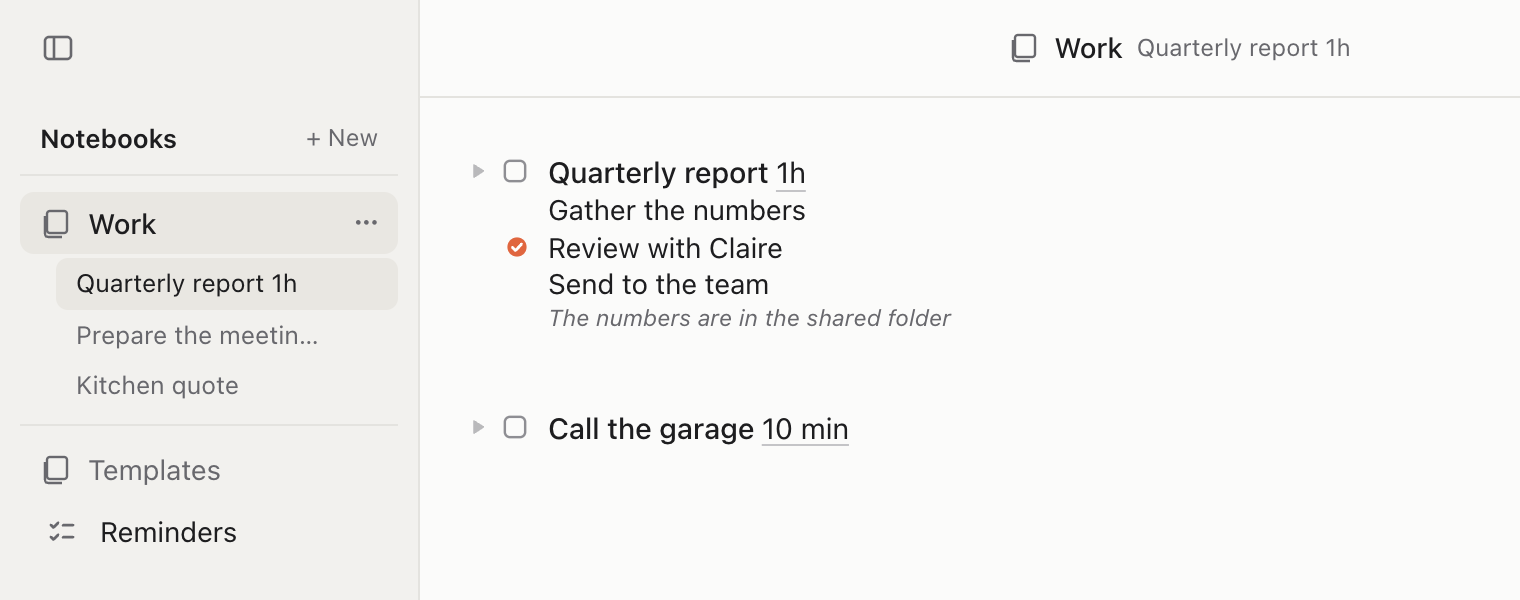
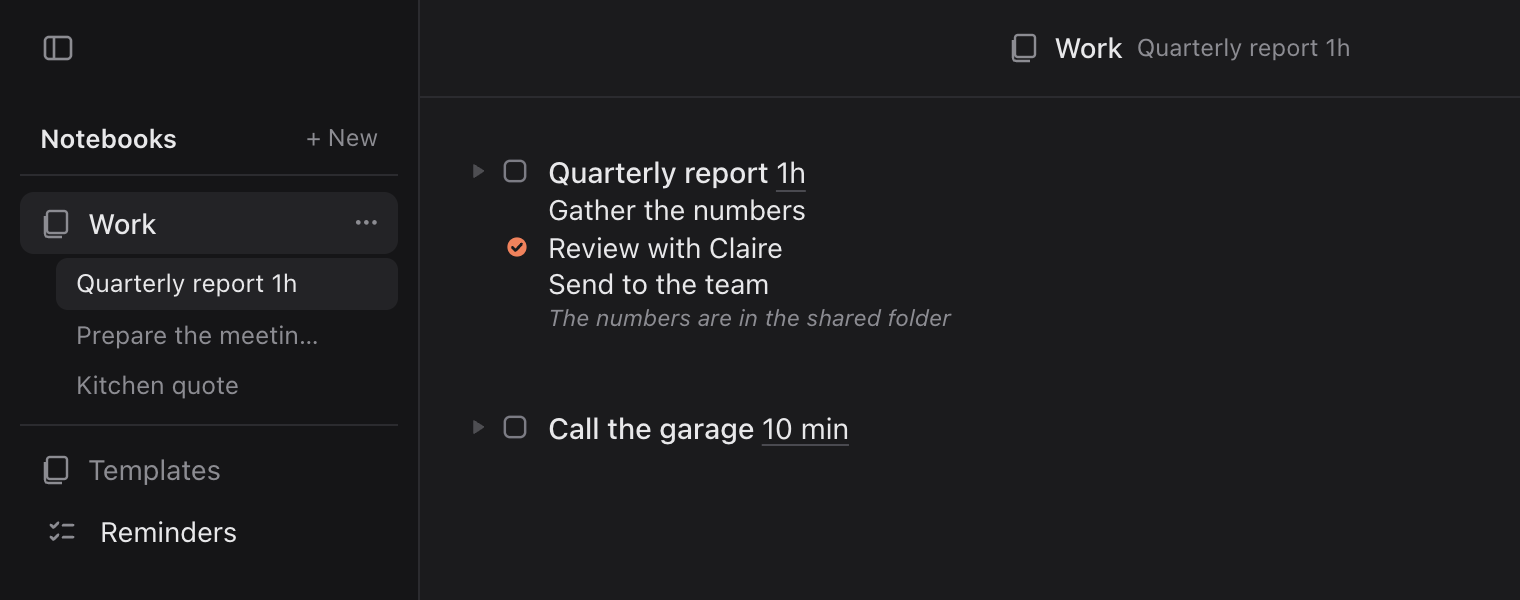
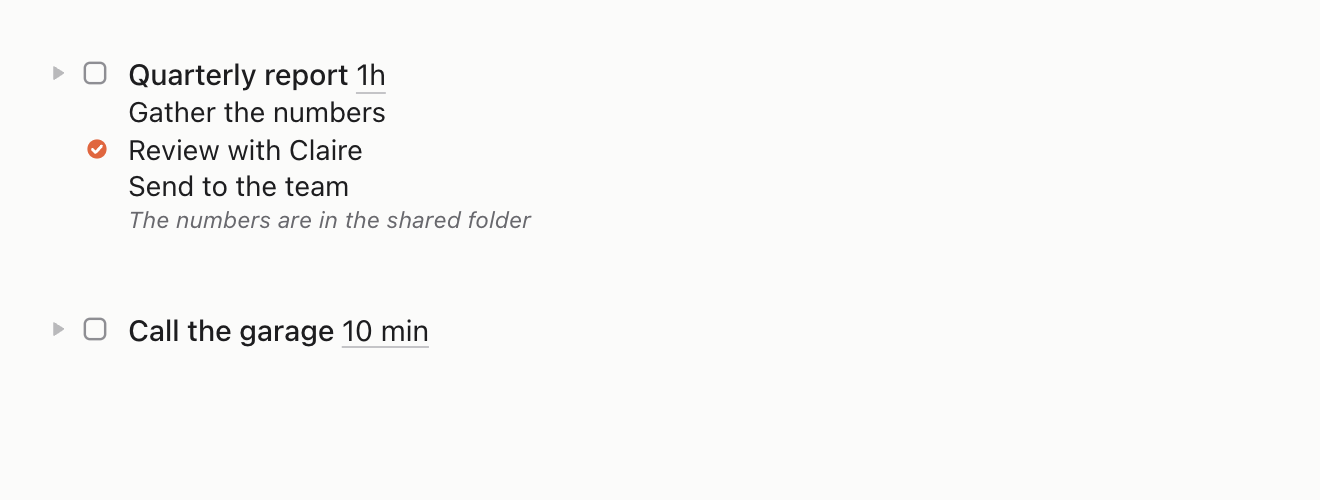
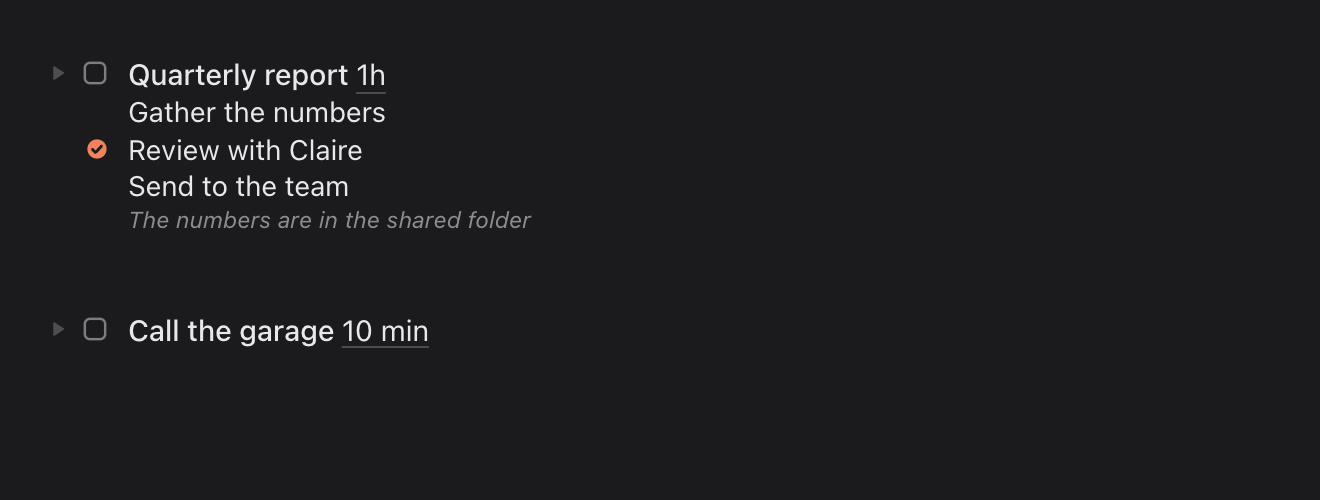
A block is a task with its steps indented below. A line starting with > is a caption.
Enter: one more step. Enter three times: a new block.
03The key feature
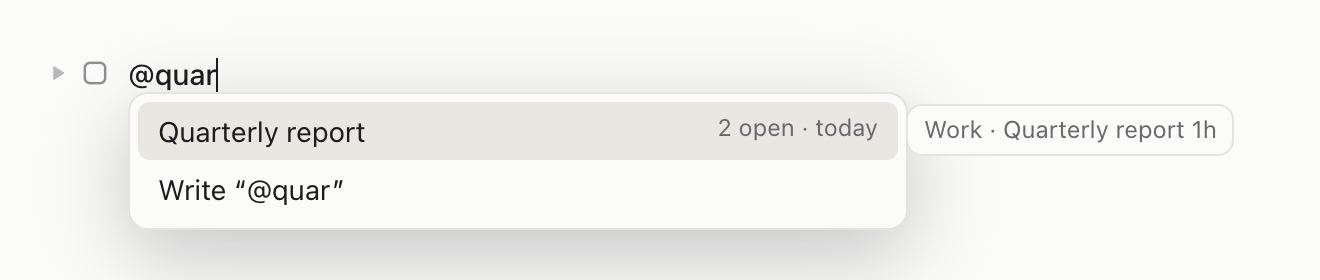
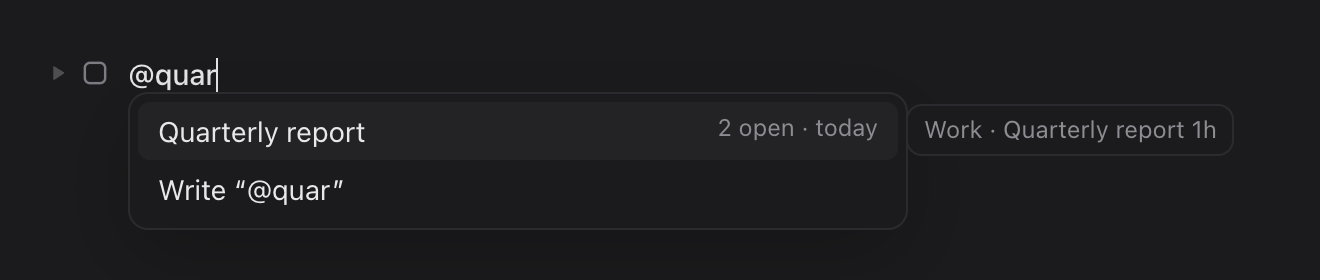
@ picks up what isn't finished
Type @ at the start of a line, then a few letters. Plaintask searches all your pages.
Pick the block. It comes back with its open steps, minus what's done.
On the old page, the steps picked up turn into [>].


04
A timer on every block
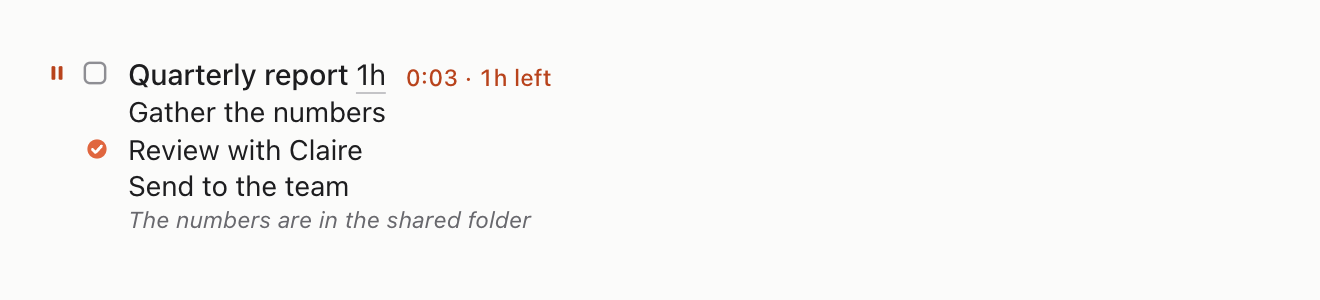
Tap ▶ in the margin. Time runs and tells you what's left.
A duration in plain words, 45 min or 1h, becomes the estimate.
Every session stays in the log. You see where your time goes, without filling anything in.

05
! sends to Apple Reminders
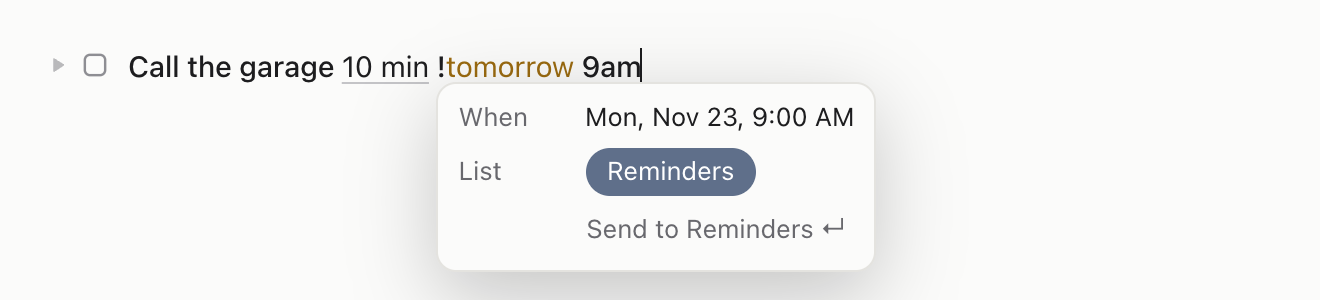
Write !tomorrow 9am at the end of a line. When you leave the line, the task goes to Reminders.
The first ! turns Reminders on. The system asks for access, once.
Checked on your iPhone or Watch, it's checked here too.

06
Templates for your routines
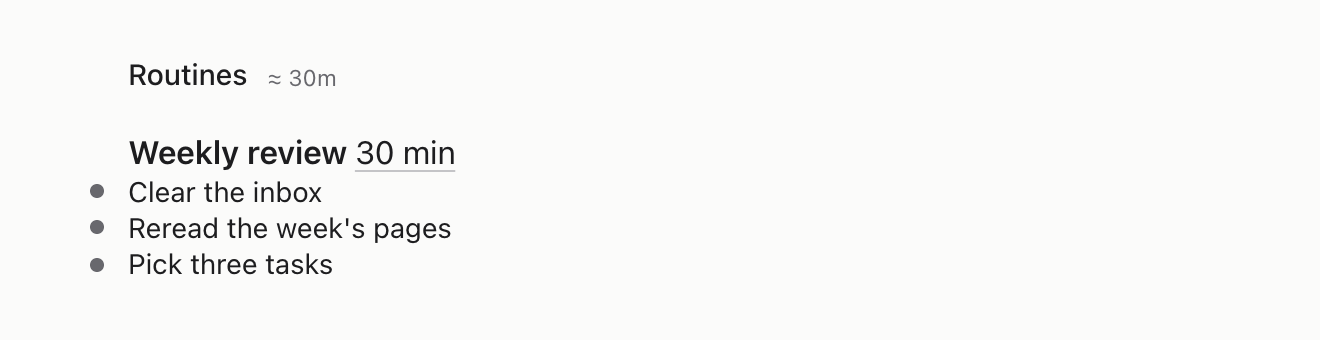
The Templates notebook keeps your routines. A page there reads like an outline: bold title, bulleted steps. Nothing gets checked there.
On an empty page, type @ and pick a template. The page fills in.

07
Your AI works in the page
It's off to begin with. Turn it on in Settings › AI, on your Mac.
Claude and the other AIs on this Mac read your pages and write in them like a keyboard. You see every change, and you can undo it.
It never deletes a page or a notebook, and doesn't touch your settings.
- “Plan this week's page from my emails.”
- “How much time did I spend on the showroom?”
- “Do I underestimate my tasks?”
08
Your pages stay yours
Settings › Your pages. Export everything as Markdown: one folder per notebook, one file per page.
Import a Plaintask export, or another app's Markdown and text files. They arrive as new notebooks: nothing is replaced.

